WordPress
WP-Cron Is Not Cron, and on a Quiet Site It Barely Runs
WordPress ties background execution directly to incoming web traffic.
Last reviewed
According to WordPress Developer Resources documentation for the _wp_cron function, standard page requests evaluate whether scheduled tasks are due and spawn the necessary execution scripts. When visitors do not arrive, scheduled publications, backup routines, and maintenance hooks sit unattended in the database.
Understanding the problem requires looking past the Unix naming convention. A developer dealing with wp-cron not running system cron setups must address the architectural disconnect between an operating system daemon and an application-level script triggered by HTTP traffic.
How Page Requests Drive the WordPress Internal Scheduler
The core WordPress scheduling engine does not run continuously. Traditional Unix cron operates as a system service, waking up every minute to evaluate tabular schedules. WordPress instead embeds task checks inside its HTTP request cycle.
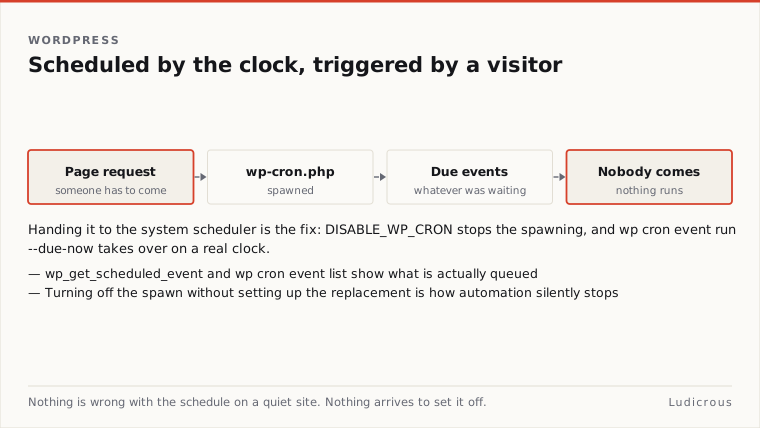
When a browser requests a page, WordPress runs _wp_cron to examine the stored event queue. If an event timestamp has passed, WordPress dispatches an internal request to wp-cron.php. This request attempts to execute the tasks associated with that scheduled action hook.
Scheduled database cleanups or time-sensitive publication events remain untouched during these lulls. The task does not vanish. It merely waits for the next incoming HTTP request to wake the scheduler.
Direct execution tells a different story. WordPress core documentation confirms that a direct HTTP call to wp-cron.php processes all due scheduled tasks immediately. This execution occurs even when automatic request-driven spawning has been deactivated elsewhere in the software configuration.
Incoming Request -> _wp_cron checks timestamp -> Spawns wp-cron.php -> Tasks executeDisabling Automatic Spawning in wp-config.php
Decoupling task execution from incoming traffic begins with altering the configuration file. WordPress documentation provides an explicit constant to turn off the automatic spawn routine attached to standard page views.
Adding the definition to wp-config.php takes a single line:
define( 'DISABLE_WP_CRON', true );
Turning off automatic spawning does not delete existing schedules, nor does it remove tasks from the database options table. It merely shuts down the traffic-dependent trigger.
WordPress core source files explain that setting DISABLE_WP_CRON to true and dispatching a direct request to wp-cron.php are mutually exclusive actions. The direct call executes tasks independently, ignoring the disabling flag defined in the configuration file.
Handing Execution to System Schedulers and WP-CLI
Once internal spawning is disabled, task processing requires an external trigger. WordPress Developer Resources includes a dedicated guide titled "Hooking WP-Cron Into The System Task Scheduler" to document this transition.
The system task scheduler handles the timing loop, operating independently of site visitors. Server administrators can configure a system daemon to trigger wp-cron.php directly at set intervals. Because direct calls bypass the DISABLE_WP_CRON check, scheduled tasks execute precisely when the server clock dictates.
Command-line tools offer a direct alternative to web requests. WP-CLI provides an administrative interface for managing and testing scheduled tasks through its wp cron command family. The utility allows developers to test, run, and delete registered hooks while managing recurring intervals directly from the shell.
For routine task runs, WP-CLI provides the command:
wp cron event run --due-now
The --due-now flag evaluates the database queue and executes any hook whose scheduled time has arrived. For targeted troubleshooting, wp cron event run accepts a specific hook name, running only the designated action without processing the entire backlog.
Running tasks through WP-CLI eliminates web-server HTTP timeout constraints and offloads execution directly to the PHP command-line interpreter.
Inspecting Queues with Developer Functions and Log Audits
Verifying the operational state of scheduled events requires inspecting the task queue before and after modifying configuration parameters. WordPress provides programmatic access to this registry through core API functions.
The wp-includes/cron.php file defines wp_get_scheduled_event, which returns the object representation of a specific scheduled event based on its hook name, arguments, and timestamp. To retrieve the recurrence pattern associated with an event, developers can call wp_get_schedule. These functions expose whether an action is registered for single execution or recurring intervals such as hourly, daily, or custom frequencies.
Support documentation from managed host WP Engine outlines specific diagnostic steps when scheduled jobs appear stalled. First, administrators can use the WP-CLI command:
wp cron event list
WP Engine support documentation also recommends searching server access logs for incoming requests directed at wp-cron.php. If access logs show zero hits for wp-cron.php over several hours while DISABLE_WP_CRON is active, the operating system task scheduler is not reaching the site.
When events accumulate in the queue without clearing, WP Engine support advises executing wp cron event run --due-now via the command line to force processing and clear backlogged items.
The Misconfigurations That Halt Site Automation
Transitioning from request-based scheduling to system execution introduces specific operational failure modes. The two most common errors leave a site without any functional task runner.
The first failure occurs when an administrator defines DISABLE_WP_CRON as true in wp-config.php but neglects to establish the external system job. The constant successfully suppresses the request-driven trigger. Without a system cron job or WP-CLI daemon making regular calls to the site, task processing stops entirely. Events queue indefinitely in the database, missing publication windows and delaying routine maintenance.
The second failure stems from a misunderstanding of how DISABLE_WP_CRON functions. Treating the constant as an outright cancellation of cron logic leads administrators to assume that background jobs cannot run at all while it is set. In reality, core WordPress code treats direct requests to wp-cron.php and command-line executions via wp cron event run as standalone triggers that process due events regardless of the constant's state.
Reliable scheduling demands verification at both ends of the workflow. The configuration must disable automated page triggers, the external system scheduler must regularly invoke wp-cron.php or wp cron event run --due-now, and the access logs or CLI event lists must confirm that queued items clear on schedule.