 Tooling
Tooling
Opening Your Local Dev Site on a Phone on the Same Network
Typing localhost into a mobile browser fails instantly because the phone queries its own internal loopback interface rather than the workstation hosting the application.
Last reviewed
Even after routing network traffic directly to the machine's local IP address, web frameworks frequently intercept the connection and redirect the handset straight back to an unreachable desktop hostname.

For WordPress environments, this failure stems from an explicit architectural rule: the software insists on canonical destinations defined deep inside configuration files and database records. Attempting to access local development site from phone hardware means confronting the way host addresses are stored, prioritized, and rewritten across multiple application layers.
Overriding Configuration Constants In wp-config.php
The fastest way to point a WordPress instance toward an accessible network address is through the central configuration file. Editing wp-config.php allows developers to bypass values stored in the database entirely, enforcing uniform locations across every request.
The WordPress Developer Handbook specifies two primary constants for this operation: WP_SITEURL and WP_HOME. Adding these parameters forces the application to construct links and asset paths using the specified network route rather than whatever domain was entered during the initial software installation.
Define( 'WP_HOME', 'http://192.168.1.50:8080' );
Define( 'WP_SITEURL', 'http://192.168.1.50:8080' );
Syntax precision matters here. The WordPress Developer Handbook explicitly states that both WP_SITEURL and WP_HOME must include the transport scheme—either http:// or https://—and must not end with a trailing slash. Appending an extra slash at the end breaks asset resolution, creating malformed paths for stylesheets, media attachments, and script dependencies.
These two parameters perform distinct tasks. WP_SITEURL defines the specific location where the WordPress core files reside. WP_HOME dictates the site address that users actually type into their address bars to reach the installation. In standard setups where core files share the root directory with the public web surface, both values remain identical. When core files are quarantined in a subdirectory, the constants diverge to match the physical filesystem and virtual routing.
Hardcoding these definitions in wp-config.php immediately overrides the corresponding entries within the database. The database records remain physically unchanged beneath the hood, but the software runtime ignores their values in favor of the active constants.
Database Option Rows And Table Prefix Variations
Relying exclusively on constant overrides can create hidden conflicts if an engineer later tries to modify site parameters through standard administrative screens. Direct database modification provides a permanent alternative that updates the actual stored rows.
The application stores default addresses inside the options table. In standard installations, this table is named wp_options. However, documentation published by InMotion Hosting notes that the table prefix frequently changes based on configuration choices made during the original setup. An installation hardened against automated attacks might replace the standard prefix with custom naming conventions, creating tables such as wp_custom_options or arbitrary alphanumeric strings.
Within that options table, two specific rows dictate routing:
siteurl: The raw database key that stores the core file location, which matches the definition governed byWP_SITEURL.home: The database key holding the public-facing site address, mirroring the scope ofWP_HOME.
Editing these fields directly requires navigating into a database manager like phpMyAdmin or running direct SQL update statements. Changing siteurl and home to the local network IP address of the host workstation ensures that the application generates functional markup when viewed on a secondary device.
Direct database edits come with an administrative consequence. If WP_HOME or WP_SITEURL are concurrently defined in wp-config.php, those constant definitions will always take precedence during page rendering. A developer can alter the database rows hundreds of times without seeing any operational difference in the browser if a static configuration override sits quietly inside the code repository.
Dashboard Controls And Emergency Relocation Flags
Developers who retain administrative access on their desktop browsers can also adjust these addresses directly through the graphical user interface. Under the Settings menu, the General sub-panel exposes the "WordPress Address (URL)" and "Site Address (URL)" fields.
The WordPress Address indicates the location of core files, while the Site Address represents the address visitors use to navigate the site. Modifying both input fields to display the LAN IP address and saving the form rewrites the underlying siteurl and home records in the options table automatically.
Once updated via the dashboard, any mobile browser hitting the local network address receives markup referencing that same IP address for images, scripts, and internal hyperlinks.
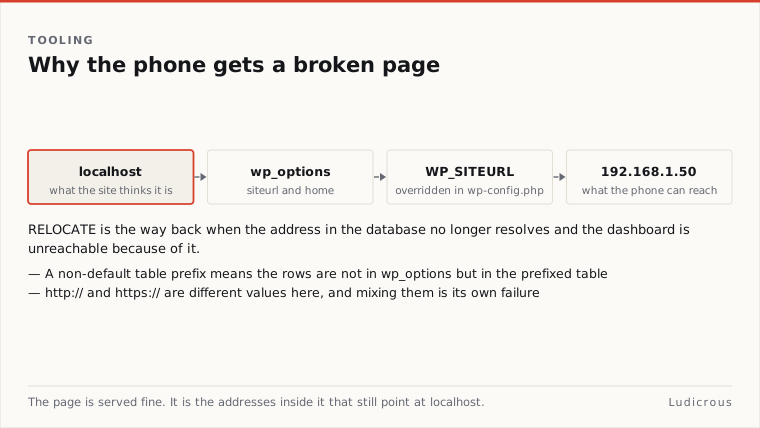
This interface method becomes completely unavailable if the constants are already hardcoded inside wp-config.php. When WP_HOME and WP_SITEURL are declared programmatically, the administrative dashboard disables the input fields entirely, rendering them greyed out and uneditable to prevent configuration drift.
In cases where altered URLs break dashboard access completely, leaving the developer locked out of the administrative area, a recovery mechanism exists. InMotion Hosting highlights the RELOCATE flag, which can be defined directly in wp-config.php:
Define( 'RELOCATE', true );The RELOCATE constant allows an administrator to log into the application from an alternate URL. When this flag is active and an administrator successfully authenticates via wp-login.php on the new address, the application automatically updates the siteurl value in the options table to match the current browser location.
The flag does not update the home setting automatically, leaving the public-facing URL split until manually synchronized within the dashboard or database.
Persistent Hostname Conflicts Across Testing Environments
Even with configuration parameters and database options aligned to a local IP address, mobile testing exposes an operational friction between local workflows and permanent site architecture.
A development machine that switches between office Wi-Fi, home routers, and mobile hotspots receives a new local IP address at every step. Because WordPress persists absolute URLs rather than relative paths throughout its database, every network reassignment invalidates the previously configured IP address. A site configured for 192.168.1.50 in the morning fails completely when the host laptop reconnects at 10.0.0.15 in the afternoon.
This constant drift leaves developers choosing between static local declarations in configuration files, repeated SQL updates across varying subnet assignments, or temporary network bridges. The fundamental mismatch remains unchanged: mobile devices require reachable network paths, while the application architecture continues to enforce strict, stored hostnames for every single asset it serves.